
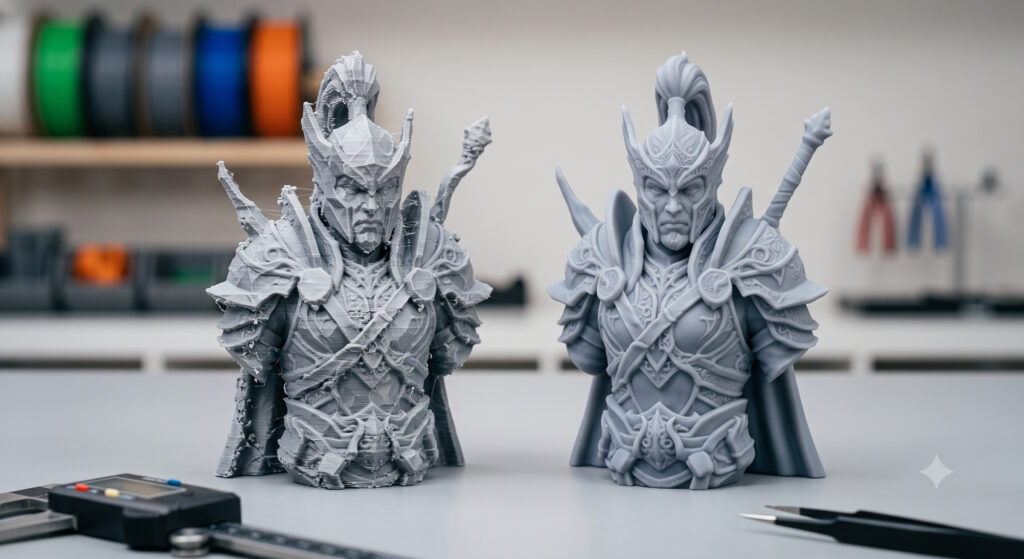
- Avoid wasted resin/filament by checking an STL’s mesh health (watertight/manifold, normals, self-intersections) before you buy.
- Confirm the model fits your printer and process (FDM vs resin/DLP) and that thin walls and tiny details aren’t below your hardware’s limits.
- Watch for “too low-res” (faceted curves) and “too heavy” (huge file sizes) meshes—both can ruin surface quality or slow slicing.
- Do a quick slicer preview to spot support nightmares, floating islands, and awkward part orientation.
- Prefer listings with proof: slicer screenshots, print photos, and clear notes on settings, scale, and part breakdown.
Buying an STL should feel like a shortcut, but it can turn into a weekend-killer: you pay, download, slice… and your slicer throws errors, supports explode, or the print comes out with ugly facets where smooth curves were supposed to be.
The frustrating part is that most of these problems are predictable from the file and the listing—before you spend a cent. Printable STLs need a higher standard than “render-ready” meshes because slicers need clean, physical geometry: closed surfaces, consistent normals, and realistic wall thickness.
Below are 7 practical checks you can do in a few minutes. They’ll help you choose files that print cleanly on common FDM machines (Prusa, Bambu Lab, Creality, Ultimaker) and resin printers (Phrozen, Anycubic, Elegoo), without surprise repairs.
1. Confirm it’s truly “printable” (not just a pretty mesh)
A lot of models online were originally made for rendering, games, or concept art. Those meshes often include shortcuts that look fine on-screen—floating surfaces, intersecting parts, internal junk geometry—but can confuse slicing.
What you’re looking for: A listing that explicitly says the model is made for 3D printing, ideally with print photos or slicer screenshots. Communities and marketplaces often “feel” similar, but their standards don’t; Pixup3D, CGTrader, and similar platforms can have both excellent and questionable uploads, so the burden is still on you to verify.
Good signs in the product page:
– Photos of the finished print (not only renders)
– A screenshot of the slicer preview (with supports if needed)
– Notes about recommended orientation, layer height, resin/filament type, and whether it was test-printed
Red flags:
– “Converted to STL” with no printing notes
– Only beauty renders, no physical result
– No scale information (miniature? life-size prop? functional part?)
2. Check watertight + manifold geometry (the “can this be a solid?” test)
For reliable slicing, the mesh should be closed (“watertight”) and manifold: each edge belongs to exactly two faces, so the slicer can clearly tell what’s inside and outside.
If the model has holes, open boundaries, or non-manifold edges, slicers may create missing layers, random filled areas, or fail the slice entirely.
Quick way to visualize the problem: Tools like MeshLab can highlight non-manifold edges so you can rotate the model and see where it “leaks.” The classic mental model is: if you filled the model with water, would it leak out?
What to do before buying:
– If the marketplace provides a preview or “analysis” panel, look for warnings about non-manifold edges or holes.
– If the seller offers a sample file (or you can view it in-browser), run a fast check in a mesh viewer/repair tool.
If you already downloaded and want to verify fast: Netfabb-style analysis/repair workflows are popular because they can automatically detect and fix common issues like holes and bad edges, and can also split/cut the model when needed.
3. Inspect normals and surface consistency (avoid inside-out prints)
STL triangles include normal vectors that indicate face direction. If normals are flipped or inconsistent, the slicer may not know what’s inside vs outside—especially on thin shells or hollow parts.
This is one of those issues that can be invisible until you slice: the model looks fine shaded in a viewer, but the toolpath comes out wrong.
What to look for:
– Consistent surface shading in a viewer that can display face orientation
– No “inverted” patches on the mesh
Why it matters: When normals are wrong, you can get bizarre results like hollow regions being treated as solid, or sections disappearing.
Practical buying advice: If a seller mentions they repaired normals, removed duplicates, or ran mesh checks, that’s a good sign they’re thinking like a printer, not just a modeler.
4. Evaluate mesh resolution: not too faceted, not too bloated
STLs approximate surfaces with triangles. Curves (holes, fillets, organic shapes) only look smooth if the STL resolution is high enough.
Too coarse and you’ll see flat spots and facets on what should be smooth geometry. Too dense and you can end up with massive files that bog down your slicer and slow processing.
Two common failure modes:
Faceted curves (too low resolution):
– Cylinders look like stop signs
– Rounded helmets or domes show obvious flat panels
– “Smooth” parts print with visible polygonal edges even at fine layer heights
Overly heavy meshes (too high resolution):
– Huge triangle counts can make scaling/rotating painful
– Slicing can slow dramatically
– Some workflows struggle when files get very large
Markforged’s practical guidance for CAD-to-STL export is a helpful benchmark for “good enough” resolution without going overboard:
Recommended starting point (when exporting from CAD):
– Binary STL (smaller than ASCII)
– Chordal tolerance/deviation around 0.1 mm
– Angular tolerance/deviation around 1°
– Optional minimum triangle side length around 0.1 mm
They also advise keeping STL file size under about 20 MB when possible, then adjusting tolerances if needed to reduce size without introducing facets.
Buying tip: You often can’t see chordal tolerance in a product listing, but you can zoom into preview images. If the seller shows close-ups of curved surfaces, look for obvious polygon edges.
5. Verify scale, wall thickness, and minimum feature sizes
A model can be perfectly manifold and still be a terrible print if the walls are too thin or the features are smaller than your printer can resolve.
Some designers aim for “universal” desktop constraints (like keeping parts within a roughly 15 × 15 × 15 cm envelope and avoiding walls under ~1 mm), but real limits depend on your process and settings.
Wall thickness reality check (FDM): Wall thickness is tied to nozzle diameter and perimeter count. A widely used rule is that minimum wall thickness should be at least about 2× nozzle diameter for reliable strength and adhesion. With a 0.4 mm nozzle, that’s roughly 0.8 mm minimum—often more if the part is functional.
Resin (DLP/LCD) reality check: Resin printers can resolve finer details than typical FDM, but thin walls can warp, crack during support removal, or fail during washing/curing. You still want intentional thickness, especially on large flat shells.
How to check thickness before committing:
– If you can open the file, use a wall thickness analysis tool that highlights thin regions with a color map and reports minimum/average thickness.
– If you can’t access the file pre-purchase, look for the seller stating minimum wall thickness or intended scale (28–32 mm mini? 1/6 bust? full-size prop?).
Buying tip: Be wary of “hero renders” of minis with hair-thin spikes, chains, or filigree unless the seller shows them printed at the same scale.
6. Do a slicer preview for supports, islands, and orientation traps
Even a clean STL can be miserable to print if the geometry forces ugly supports, creates weak overhangs, or produces “floating islands” in resin slicing.
CGTrader’s buyer guidance hits the practical point: tested models are worth more because the creator has already thought through orientation, supports, and how the print head (or peel forces in resin) will behave.
What to check in the slicer preview:
– Overhangs that will need heavy support
– Long, thin parts that will wobble (FDM) or tear off supports (resin)
– Areas where supports will scar highly visible surfaces
– For resin: islands in early layers that need support, and large suction-cup cavities that need drain/vent holes
Support strategy matters: Auto-generated supports can be wasteful and can damage surfaces when removed. Some designers add supports manually or design parts to minimize them (smart splits, keyed joints, flat bases).
Buying tip: If the model is complex, prefer files that are already split into sensible parts, with alignment keys, and with an orientation suggestion.
7. Sanity-check file integrity and workflow compatibility
Sometimes the “problem STL” isn’t geometry—it’s the file itself.
Common issues include corrupted downloads, the wrong file type (or mislabeled extension), and STLs so large that your machine struggles to open them.
Fast compatibility checks:
– Make sure the download includes what you expect: STL(s), maybe 3MF/OBJ, and ideally a README.
– If you’re on a typical home PC, be cautious with extremely high-poly STLs; they can be slow to edit and slice.
– Remember: printers don’t print STLs directly—your slicer converts the mesh into toolpaths (G-code for FDM, or layer images for resin). If the STL is messy, that conversion is where failures show up.
Buying tip: If you see a listing with multiple versions (e.g., “solid,” “hollow,” “pre-supported,” “split”), that’s usually a sign the creator tested the workflow rather than dumping a single raw mesh.
Common Mistakes
Buying based on renders instead of print proof
A render can hide faceting, thin walls, and even missing geometry. When you buy based only on glam shots, you’re gambling that the mesh is watertight/manifold, that normals are consistent, and that the details are actually printable at the advertised scale.
If you can, prioritize listings with real print photos or at least slicer screenshots showing supports and orientation. It’s the closest thing to a “test drive.”
Assuming “high poly” automatically means “high quality”
A dense mesh can still be badly constructed (self-intersections, non-manifold edges, messy overlaps). And even when it’s technically clean, extreme polygon counts can slow down slicing and make basic edits painful.
You want the sweet spot: enough resolution to avoid faceted curves, but not so much that the file becomes a slog to handle.
Ignoring scale and minimum wall thickness
People often buy a model, scale it down to fit their printer, and only then discover the walls and details are below printable limits.
Before you buy, confirm intended scale and look for minimum thickness guidance. If the seller doesn’t provide it and the model looks delicate, assume you may need to thicken features or print larger.
FAQ
What does “watertight” mean for an STL?
A watertight STL has no holes or open boundaries in the surface mesh. It fully encloses a volume so the slicer can treat it as a real solid.
What’s the difference between watertight and manifold?
Watertight means the surface is closed (no gaps). Manifold means the mesh is topologically valid for printing—most importantly, each edge is shared by exactly two faces, so “inside” and “outside” are unambiguous.
Why do some prints show flat spots on curves even with fine layer height?
That usually comes from low STL mesh resolution (coarse triangulation), not your printer. Curved CAD surfaces get approximated by triangles; if there aren’t enough, you’ll see facets on the print.
Is a smaller STL file always better?
No. Too small can mean the mesh is under-resolved and you’ll get faceting. But extremely large STLs can slow slicing and editing. A balanced mesh is the goal; for CAD exports, many people start around 0.1 mm chordal tolerance and adjust from there.
How can I check wall thickness if I haven’t bought the file yet?
Ideally, choose listings where the seller states minimum wall thickness or intended scale. If you can access a preview download/sample, use a wall thickness analyzer that color-maps thin regions and reports minimum thickness.
Do I need different checks for FDM vs resin printers?
The mesh-health checks (watertight/manifold, normals, self-intersections) apply to both. The practical printability checks differ: FDM is more sensitive to overhangs, bridging, and nozzle-based minimum feature size; resin is more sensitive to islands, suction-cup cavities, and support scarring. Either way, a slicer preview is your best reality check.
What marketplaces are good for printable STLs?
Pixup3D, CGTrader, MyMiniFactory, Cults, and similar platforms can all have excellent files. The key is to evaluate each listing: look for test prints, slicer screenshots, and clear print notes rather than trusting the platform name alone.
If a model has errors, can I just “auto-repair” it?
Sometimes, yes—tools like Netfabb-style repair can close holes, remove duplicates, and fix some manifold issues. But auto-repair can also change geometry, fill gaps you wanted open, or create new artifacts. If you’re buying, it’s better to start with a clean, proven STL than to rely on repairs every time.
Sources
- How to check your .stl files before 3D printing them | 3dfizz – a great 3D print community
- Guide to STL 3D Print Files for Better 3D Printing | Markforged
- STL File Best Practices: Preparing Geometry for High‑Quality Large‑Scale Prints
- How to Check if Your Model is Watertight and Ready to 3D Print
- STL Wall Thickness Checker Online | 3D Print Analyzer – iamRapid
- Buyers guide to purchasing good 3D printable models | CGTrader
- Problems With STL Files: Check STL Files for 3D Printing
- Wall Thickness in 3D Printing: Recommendations, Minimum and Maximum Values – Raise3D: Reliable, Industrial Grade 3D Printer
- STL (file format) – Wikipedia
- STL to 3D Printer: How to 3D Print STL Files? | Xometry
Ready to put these ideas into practice? Browse 3D printable models on Pixup3D and find your next print!